Introduction
VoxelGFX is a high level library that aims to make working with voxels as easy as it is to work with pixels using common pixel graphics libraries. It is designed to rely only on OpenGL for rendering. It however also uses fbpng/zlib to support the saving and loading of .png files containing volume bitmaps. As such VoxelGFX should be highly portable to any system supporting OpenGL, and should be easy to integrate into existing OpenGL programs.
VoxelGFX is written in FreeBASIC for use with FreeBASIC (www.freebasic.net). However bindings to the C programming language and potentially other languages are anticipated.
Concepts
Pixel graphics are drawn on 'surfaces', and as such voxel graphics are drawn on 'volumes'. Unlike pixel graphics however you can not draw directly to a surface representing the screen. You draw on a volume and that volume has to then be rendered to the screen from a perspective before it is visible. Those familiar with OpenGL can fully control the rendering step through OpenGL, however VoxelGFX provides a useful VoxelScreen construct to make this part easier. No familiarity will OpenGL is needed to use the VoxelGFX builtin perspective control.
Downloads/Links
VoxelGFX.zip
Git Source
Forum thread
fbpng thread
Reference
Types
SetUp
File Operations
Drawing State
Drawing
Rendering
Perspective Control
Reading
Examples
ExLines.bas
This basic example shows how to setup VoxelGFX and render a slowly rotating cube of lines.
ExLinesSDL.bas
This example is the same as the previous one except that it runs on SDL instead of fbgfx.
ExCircleText.bas (also needed: VoxelFBGFXHelper.bas)
This example uses fbgfx to draw circles and text onto offscreen buffers which are coppied to a voxel volume. The example itself is still quite simple however as all the heavy lifting is done by the small 'VoxelFBGFXHelper.bas' helper library. This example allows perspective control using the arrow keys.
ExSphere.bas
This example uses hit testing to allow easy drawing onto a sphere using the mouse. The drawing is automatically saved in 'Sphere.png' and loaded next time the program is run. Use the numbers 0-9 to select a color, the left mouse button to draw, and the right mouse button or arrow keys to rotate the perspective.
ExRubix.bas
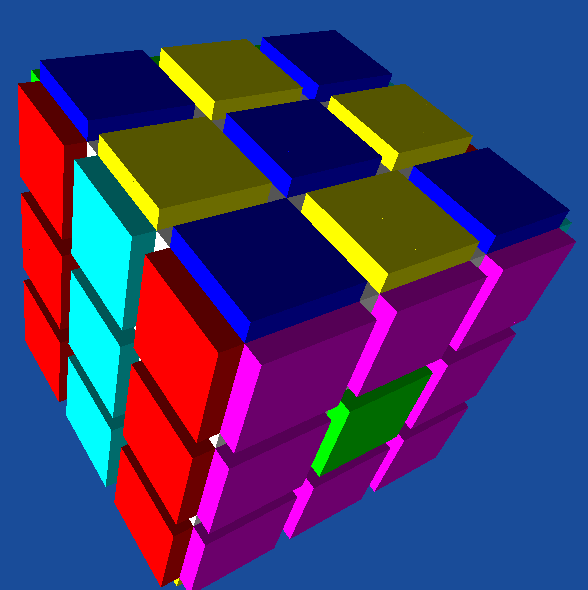
This example creates a simple rubix cube simulation using the VoxBlit function to perform right angle rotations in 3 dimensions. Use the left mouse button to turn a cube face, and the right mouse button or arrow keys to rotate the perspective.